

The incident ticket is the entry point for alerting. Unlike a process based on monitoring dashboards that require constant attention from operators, ticket-based alerting proactively notifies responders, and only when a problem is detected. It therefore reduces the resources needed to monitor a system and improves detection times.
What does an Incident look like?
In Astry, every problem is qualified as an Incident. It takes the form of a ticket, which includes:
- a title and the description of the problem (descriptions in JSON, HTML or Markdown format are automatically detected and formatted)
- a status (Open, Acknowledged or Resolved)
- a priority, from P1 to P5: Critical, High, Medium, Low and Informational
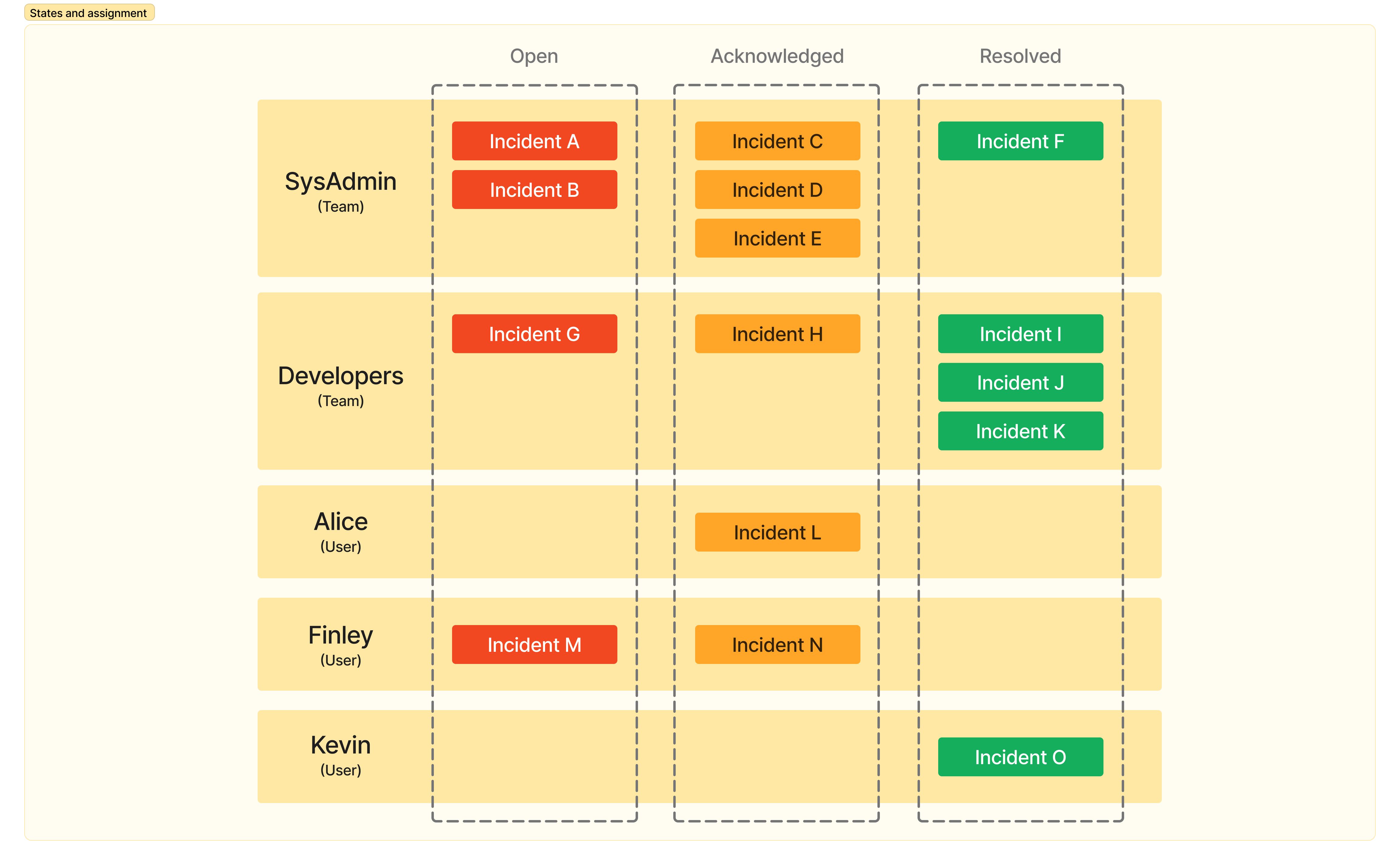
- an assignment, to a team or directly to a user
- tags
- comments to track the follow-up of the incident
- the history of the incident's events (status, priority and assignment changes, escalations, ...)
- the alerts received for this incident, as well as the notifications sent
- metadata (identifier, opening date, source, impacted resources, linked incidents, ...)
All the incidents (and crises) of your organization are listed in the Inbox.
Workflow when an incident is raised
When an incident occurs, a ticket is raised (via email, API, Prometheus, monitor, phone call, ... : see Integrations) and appears in the Open state. It is then assigned to a team by the routing rules, and the on-call member of this team is notified. The following steps are then traditionally followed when working on the incident:
- You acknowledge the incident to let your team members know that it has been seen and that someone has started the investigation.
- You analyze the problem, tracking your progress on the incident ticket.
- You bring the impacted service back up if possible (without necessarily fixing the root cause).
- You resolve the incident in Astry.
- Then, optionally, you write an incident report and track the long-term resolution tasks (fixing the root cause if it has not been addressed).
Note: An incident can also be created manually from the Inbox, using the Create incident button: you then fill in its title, priority and description, and optionally a team (otherwise the routing rules assign it), resources and tags.
Incident states
An incident can have three different states:
- Open: this is the default state when the incident is created and has not yet been seen or acknowledged. If an incident remains in the Open state, the on-call team member will keep being alerted (regularly over time, according to their notification policy). If it stays in this state for too long, it can be automatically escalated (see Escalation).
- Acknowledged: once the incident has been acknowledged, it moves to the Acknowledged state. In this state, the on-call team member is no longer alerted. The incident can nevertheless go back to the Open state, either manually, upon reassignment, or automatically via the reopening policies. In that case, the on-call member will be alerted again.
- Resolved: once the incident is resolved, it can no longer change state without a manual action. The on-call member is of course no longer notified.
Note: Astry supports incident de-duplication. This means that if two incidents of the same type are raised while the first one is still in the Open or Acknowledged state, the second incident will not be created, because Astry considers it to actually be a second alert for the same incident (this avoids opening several incident tickets for the same problem and being spammed). In this case, the second alert is attached to the existing incident and appears in the Alerts tab of the incident page. Once the incident has moved to the Resolved state, if the alert occurs again, a new incident will be created. Astry relies on a correlationId attribute to detect duplicates (see the documentation of each integration in the Astry tool to set this value).
The incident page
By clicking on an incident in the Inbox, you open its page. It brings together:
- the header, with the title, status and tags of the incident, all of which can be edited directly
- the description of the incident
- three tabs:
- Comments and changes: the full history of the incident (status, priority, title and tag changes, assignments, escalations, automatic reopenings, mutes, ...), along with the comments. Comments are rich text and can contain images.
- Alerts: the raw content of each alert received for this incident (including de-duplicated alerts).
- Notifications: every notification attempt made for this incident, per channel (email, SMS, phone call, push notification, Microsoft Teams), with its result (sent successfully, or the reason for the failure, such as no verified channel).
- an information panel, with the identifier, the creation date, the assignment, the person currently on call for the assigned team, the priority, the source of the incident, the impacted resources and the linked incidents.
A Seen by indicator also shows which members of your organization have viewed the incident, and up to which event.
Actions on an incident
From the incident page, you can:
- acknowledge, resolve or re-open it
- re-assign it to a team or a user (if it is not in the Open state, the incident is re-opened by default so that the new target is notified)
- change its priority, title and tags
- mute it for a given duration (in minutes, hours or days) or indefinitely: notifications related to the incident are suspended until the mute ends
- watch it: you are then informed by email of every action or comment on this incident (see Notifications)
- link it to other incidents, specifying the type of link (relates to, depends on, is dependency of)
- associate resources with it
- delete it (Owners only): all associated comments and events are then permanently deleted
Note: Stakeholders have read-only access to incidents: they cannot change their status, assignment, priority or tags.
Escalation and reopening policies
Astry lets you define flexible escalation policies. Based on a set of criteria you define (tags, priority, ...), incidents assigned to a team that remain in the Open state for more than an hour (or more than 3 days, etc.) will be automatically assigned to the team or user of your choice. You thus have the guarantee that an incident will always be detected and handled. Of course, you can also escalate each incident manually by assigning it to any team. All the details are described on the Escalation page.
Similarly, reopening policies automatically re-open an incident that has stayed in the Acknowledged state for too long, so that it is never forgotten.