

The vault is a secure space, accessible via Astry's web interface, for storing secrets, keys, documents, procedures, certificates, and more. You can access it from your Astry workspace, under the main Tools tab, then Vault.
It relies on one fundamental principle: end-to-end data encryption. In practice, this means that data stored in the vault is encrypted before being sent to Astry's servers, remains encrypted at rest on the servers, and is only decrypted when you retrieve it, and only after being requested. Neither Astry administrators nor our hosting provider can therefore access the data in clear text. The cryptographic mechanisms involved are described further below.
User experience
Setting up the vault
The first time you set up your vault (Configuration tab), you must choose a passphrase of at least 16 characters (an indicator helps you assess its strength). It is used to encrypt your vault's master key (its private key, see next section), and therefore to decrypt the data stored in it. Warning: this passphrase is never transmitted (nor stored) on Astry's servers, so it cannot be recovered by our teams if you lose it, and documents stored in your vault will not be recoverable (or decryptable).
Uploading a document
Once your vault is set up, you can start uploading documents to it, from the Documents tab: drag and drop your files into the folder of your choice. Anyone within your organization can upload a document, and the passphrase set up in the previous step is not required (it is only used for decryption, see the next section). You can also, via the Astry API, upload documents programmatically (by providing an API key).
Retrieving a document
To retrieve a document, select it in the Documents tab to download or preview it (images, PDF). You will then need to enter the passphrase set up above. Several files can also be selected to be exported at once, as a ZIP archive.
Organizing the vault
The content of the vault is organized in folders. You can create folders, rename and move files or folders, and delete them (deletion is permanent). A search bar lets you quickly find a file or a folder.
Each file also has a version history: the previous versions of a file (over the last 90 days) can be previewed or downloaded.
Finally, the Recent activity panel records the operations performed on the vault: uploads, downloads, folder creations, renamings, moves, deletions, master key configuration, ...
Limits and reset
The vault can hold up to 100 documents, of up to 100 MB each, for a total of 10 GB. Current storage usage is shown in the Configuration tab.
From this same tab, the danger zone lets you reset the vault: all documents are then permanently deleted, and a new master key can be defined. This is the only option if the passphrase is lost.
Cryptographic mechanisms
Several cryptographic mechanisms are used, for different purposes:
- Encryption of data in transit between your browser and Astry's servers is handled in a very standard way by the TLS protocol. It ensures the confidentiality and integrity of exchanges between your browser and Astry's servers, but it is not what provides end-to-end encryption or the impossibility for our teams to access your data in clear text.
- Encryption of data at rest on Astry's servers relies on a combination of symmetric and asymmetric encryption:
- each document is encrypted with its own symmetric AES-256-GCM key, randomly generated in your browser
- this symmetric key is itself encrypted with an asymmetric RSA key pair (RSA-OAEP, 4096 bits) specific to your vault:
- whose public key (used to encrypt) is known and stored on Astry's servers
- and whose private key, or master key (used to decrypt), is not known to Astry's servers. This private key is randomly generated in your browser the first time you set up your vault, and is itself encrypted with AES-256, using a key derived from a passphrase of your choice (unknown to our servers), before being sent to us.
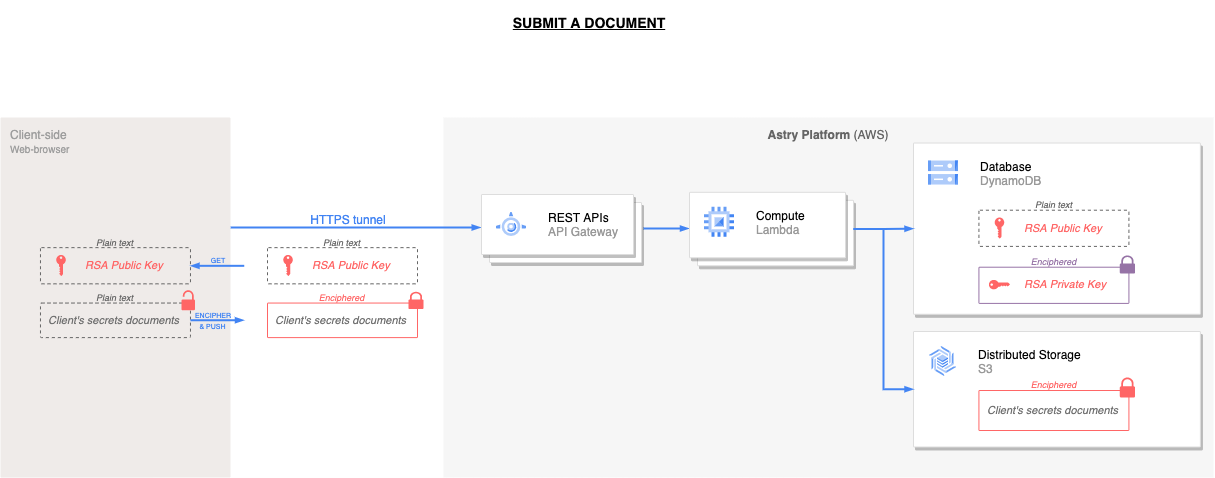
The use of these mechanisms during the document upload phase can be illustrated as follows:
- The user (via the Astry Web UI) calls an API to retrieve their vault's public key (no passphrase is required here).
- They then select, in their browser, which files from their disk they want to upload to their vault.
- The Astry Web UI encrypts the data on the fly (with an AES key generated for each file, itself encrypted using the public key retrieved earlier), and sends it to Astry's servers.
Note: this upload step can be performed by a human via the Web UI, but also programmatically via the API (by providing an API key).
Conversely, to retrieve a document, the process is as follows:
- The user (via the Astry Web UI) calls an API to retrieve both their vault's private key (which is itself encrypted using the passphrase set up above) and the encrypted documents they want to retrieve.
- They then enter, in the Web UI, the passphrase set up above.
- The Astry Web UI decrypts the vault's private key on the fly (using the passphrase provided), then the AES key of each document (using the vault's private key), and finally the documents themselves.
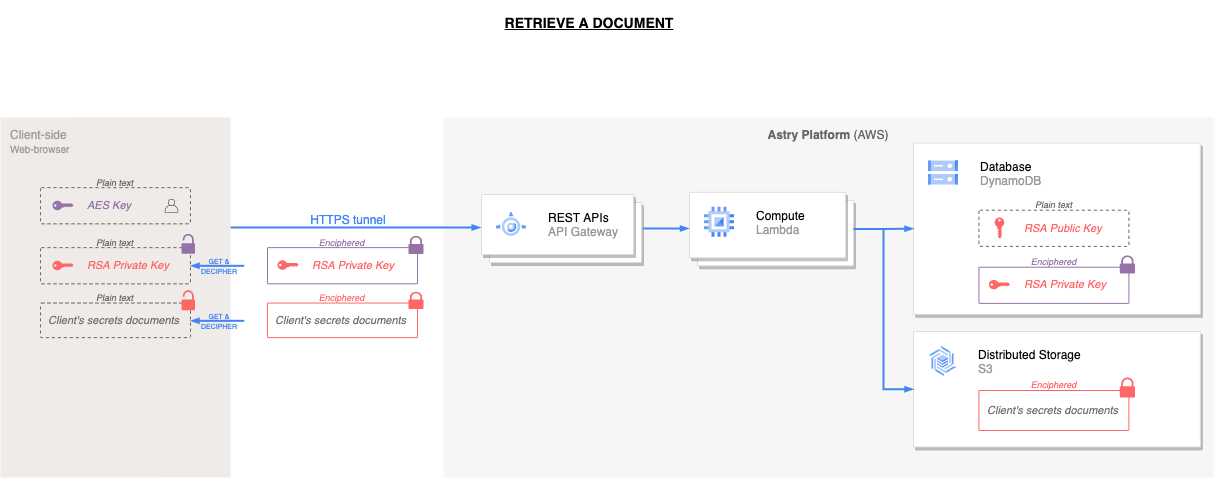
Uploaded documents (in clear text), the passphrase set by the user, and the vault's private key (in clear text) are therefore never transmitted (or stored) on Astry's servers.